Meeting rooms in Outlook Web
Adding a meeting room – to your Calendar in Outlook
Booking a meeting room
How to see if/when someone is available for a meeting
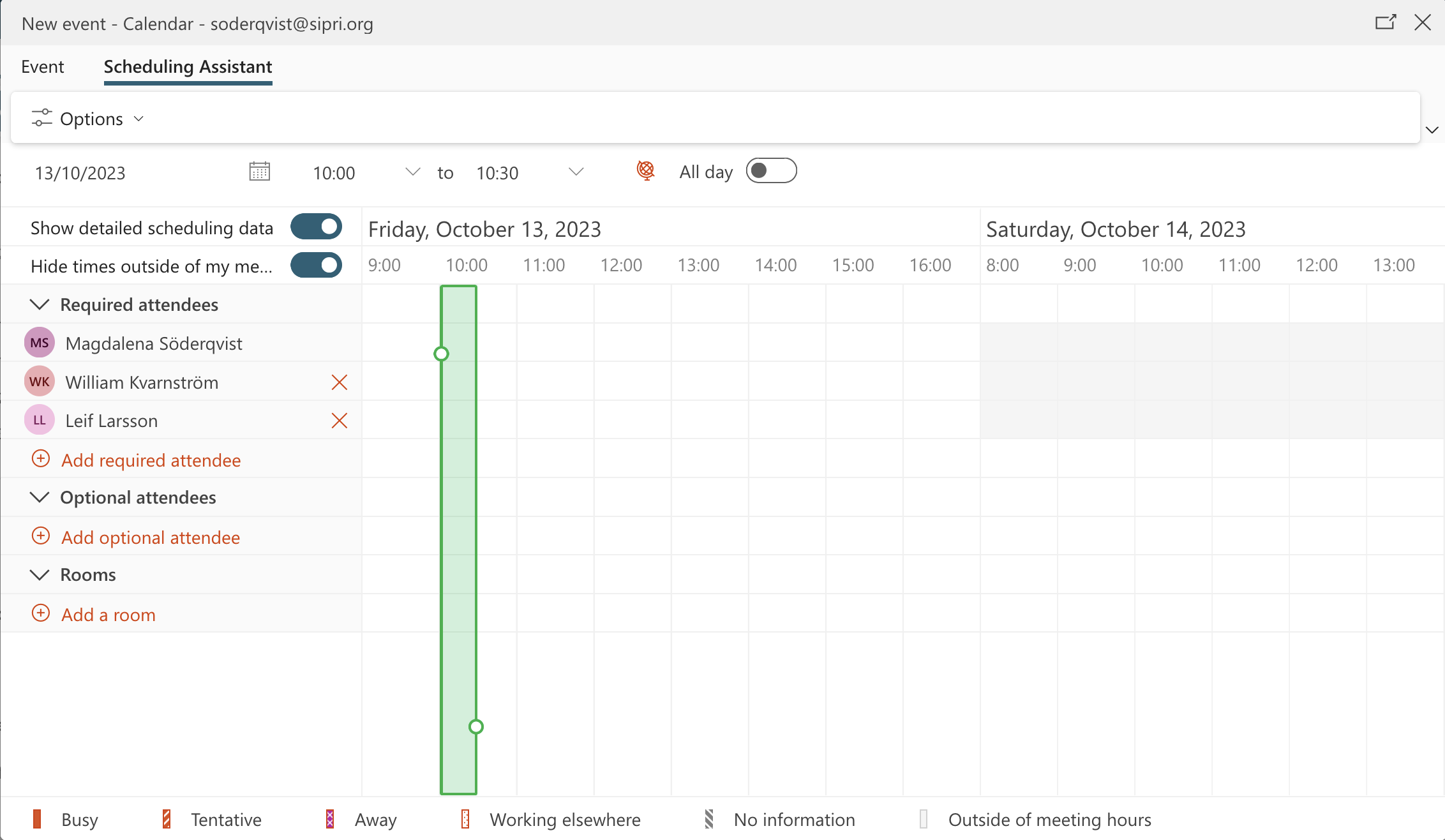
Using the Scheduling Assistant
Adding a meeting room to your Calendar in Outlook
We currently have 7 meeting rooms, 6 of which can be booked through your Outlook:
Go to the Calendar tab. Click “Add calendar”. Choose “Add from directory”. Search for the following:
conferenceroom@sipri.org (View only. Pls contact Annika or Matilda to book the room)
boardroom@sipri.org
yearbookroom@sipri.org
alvaroom@sipri.org
arsenalroom@sipri.org
seminarroom@sipri.org
atticroom@sipri.org
And add them one by one. They should now appear in the calendar tab under Other Calendars.
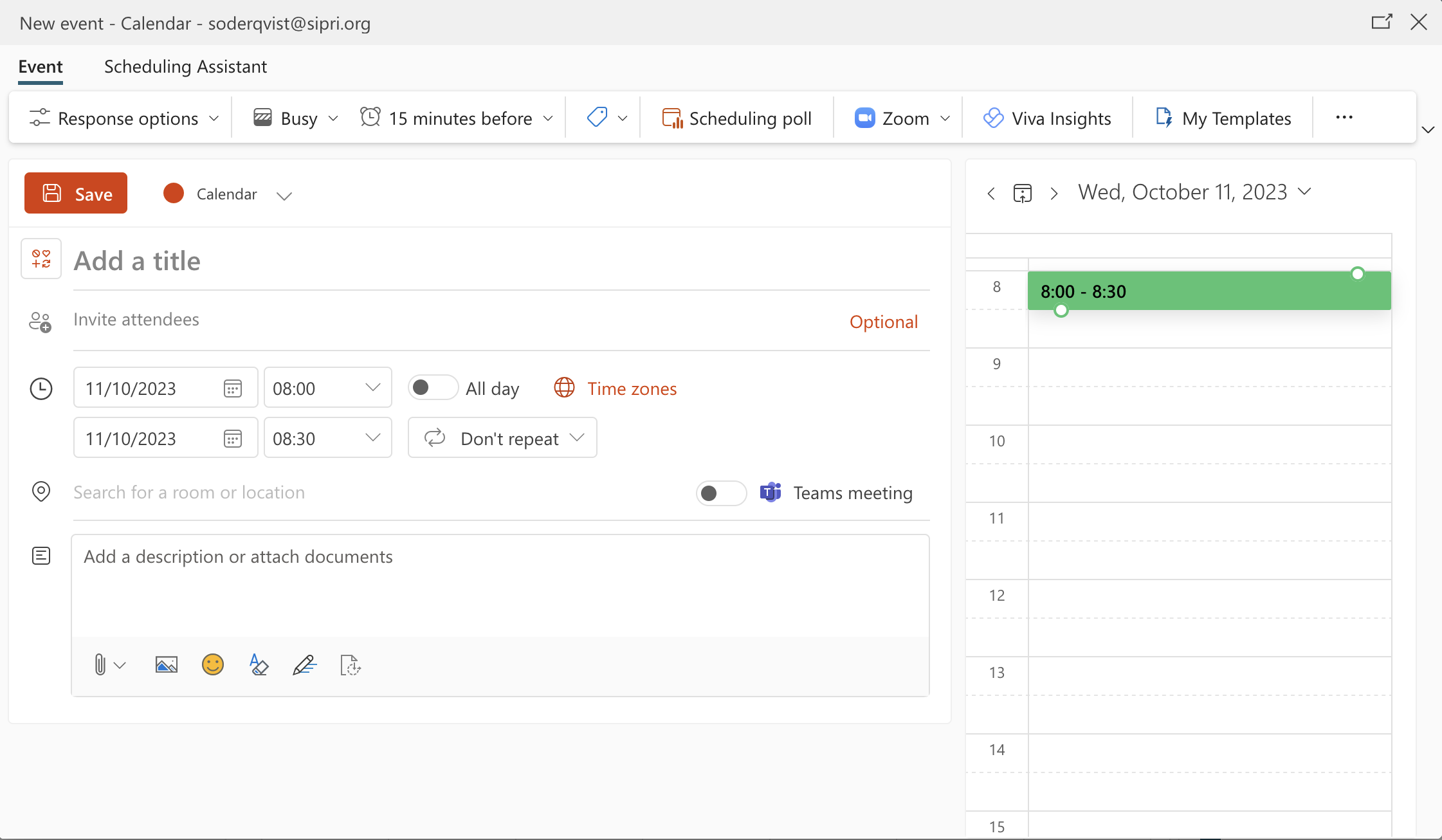
In the Calendar section of Outlook on the Web: Double-click the day for which you want to make a booking – or – click the button “New event”.
- Add a title and Start time/End time in the window that appears.
- Click Scheduling Assistant – or – Use “Search for a room or location”. Click “Browse with Room Finder” to see all available meeting rooms.
- Select the room you want.
- If applicable, select the people to be invited in Add attendees.
- Click Save/Send.
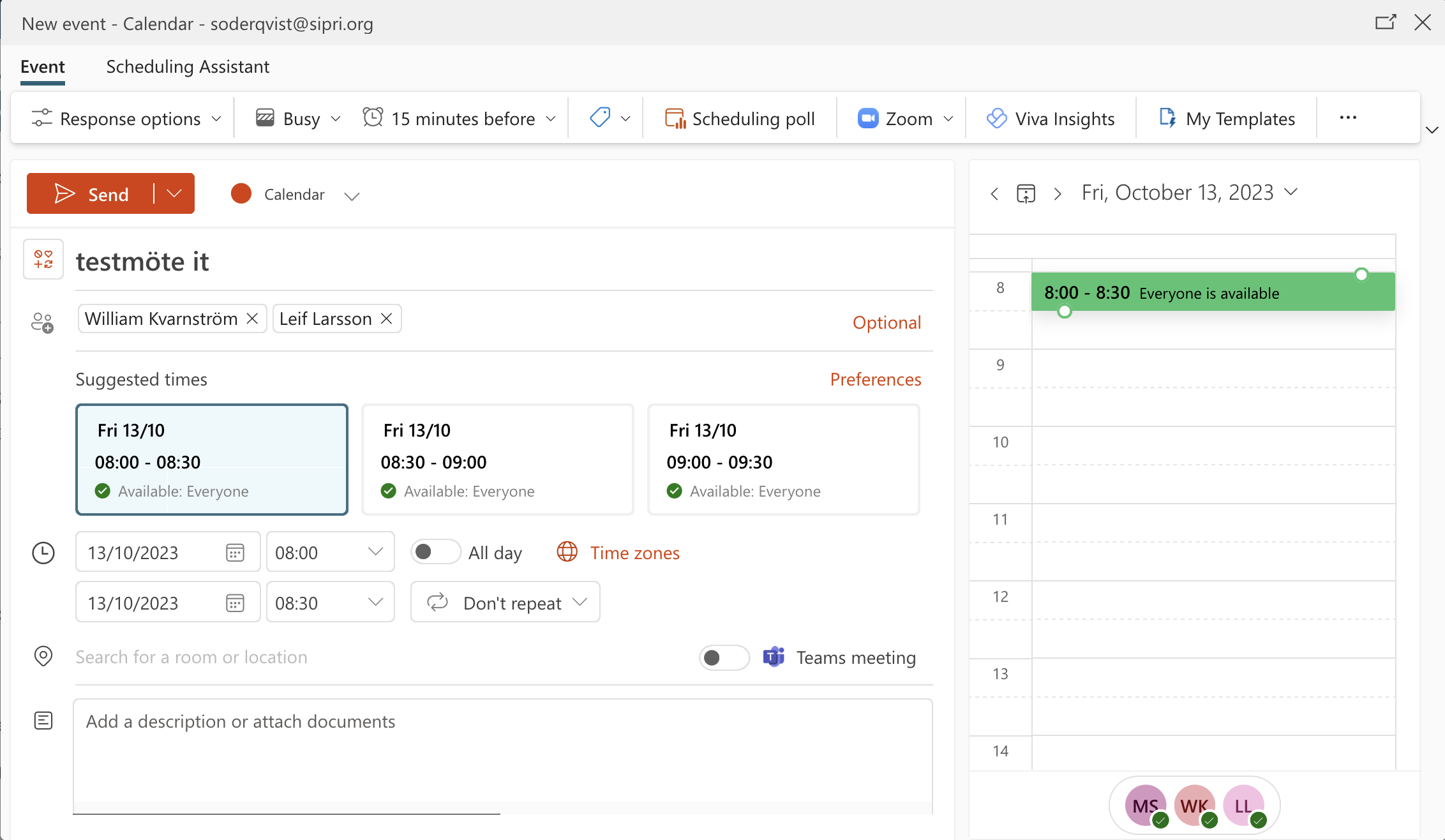
How to see if someone is available for a meeting
- Enter the names of the people you want to invite to the meeting.
- Outlook will now suggest times when everyone is available.
- Search for a room or location to see which meetings rooms are available at the chosen time.
Using the Scheduling Assistant
- Click the Scheduling Assistant tab at the top.
- Change the date and/or time at the top.
- Add required and optional attendees in the left-hand panel.
- Click the + Add a room to see which rooms are available.