
MFA (Multi-factor Authentication) adds an extra layer of security to your Microsoft 365 account sign-in. For example, you first enter your password and, when prompted, you also type a dynamically generated verification code provided by an authenticator app or sent to your phone as sms.
Set up via SMS (below). Or choose to Download as PDF
Set up via authentication application (below). Or choose to Download as PDF
- Go to https://login.microsoftonline.com and log in with email and password like you normally do.
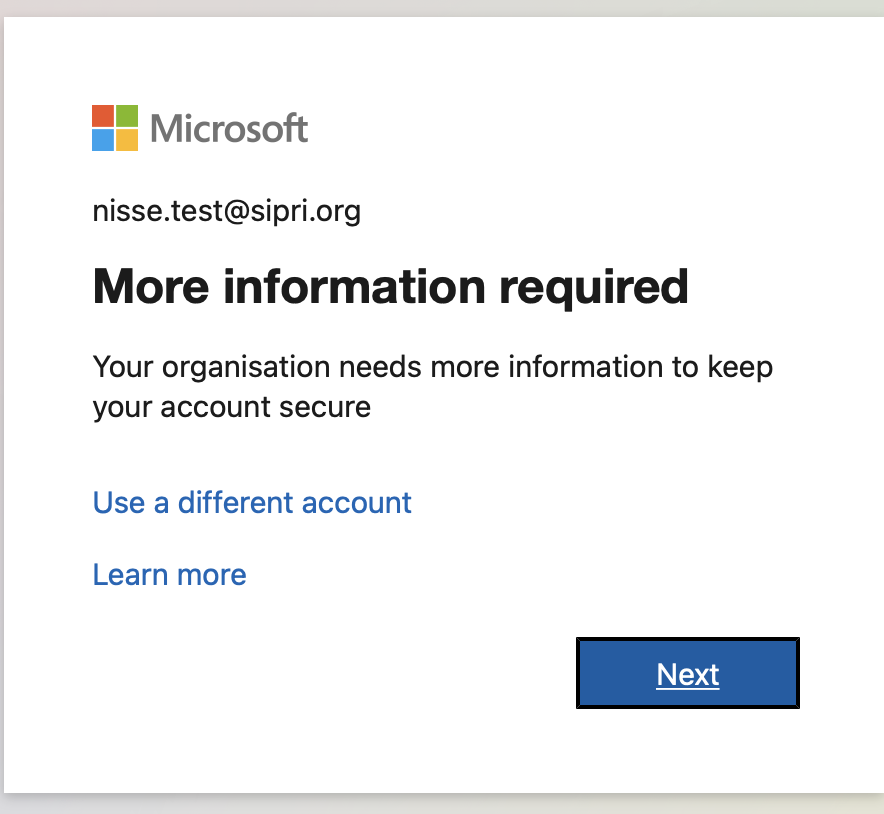
- A new window should appear: “More information required”. Click Next.
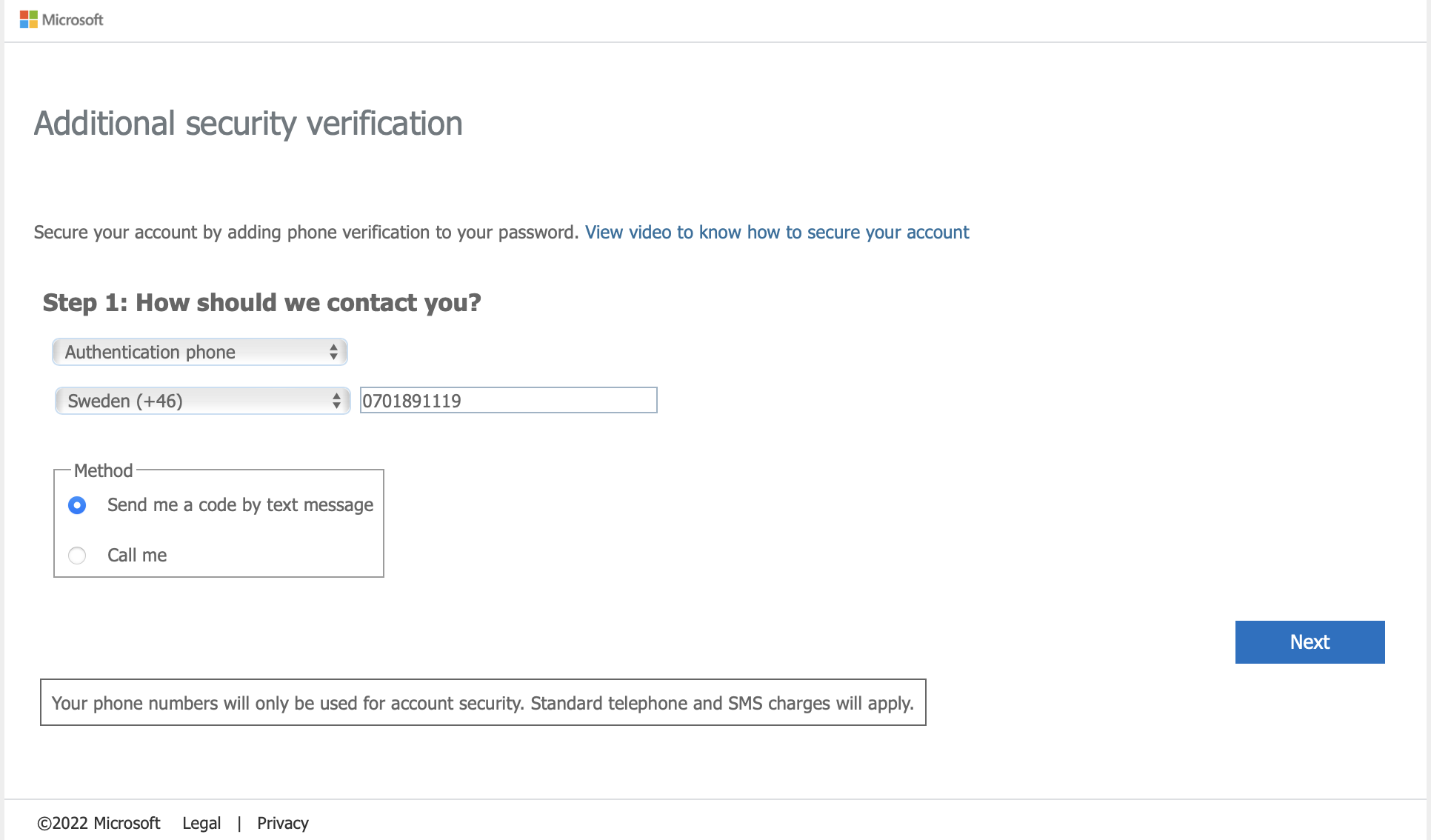
- Add a phone number and choose your method (we recommend “send me a code by text message”). Click Next to verify.
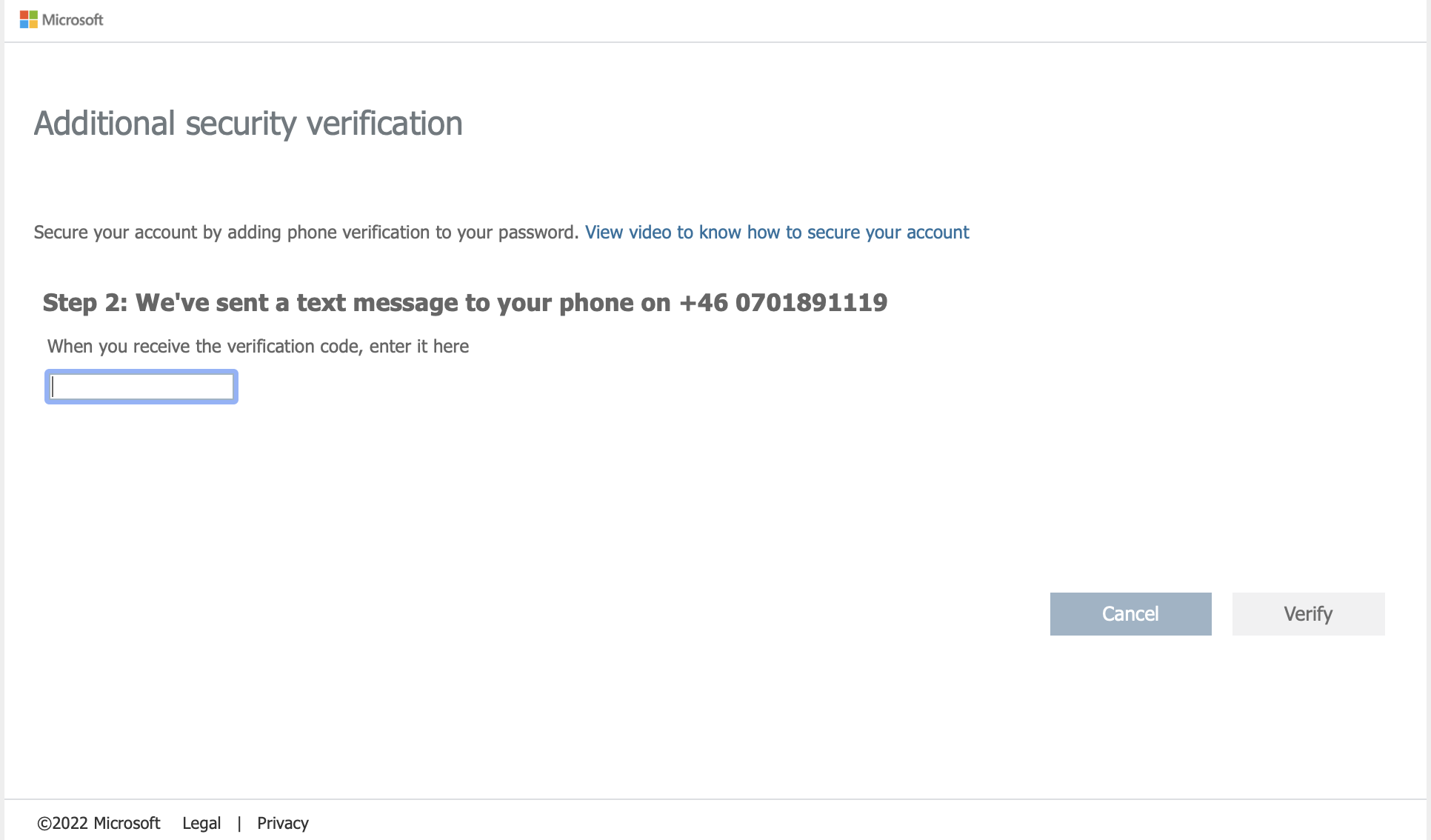
- Check your phone for a text message from Microsoft. Enter the verification code in the box and click Verify.
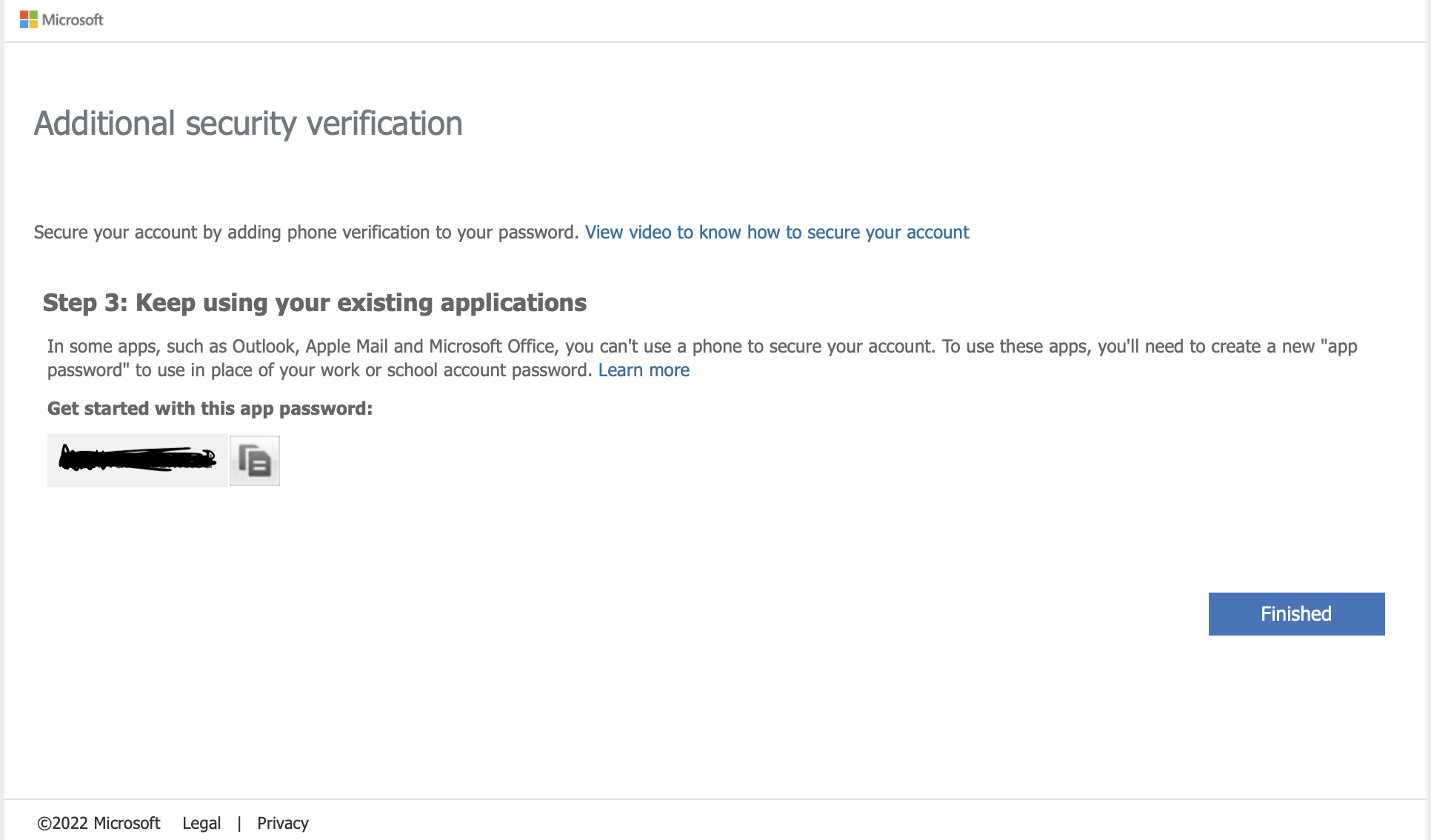
- Ignore the below page and click Finished. And you are all set!
Set up as authentication application
- On your Mac, go to https://login.microsoftonline.com and log in like you normally do, using the already added sms-method to verify your account.
- Go to https://account.activedirectory.windowsazure.com/proofup.aspx?proofup=1
Choose how you want to do your second verification from the drop down, and if you want to receive notifications or use app generated codes.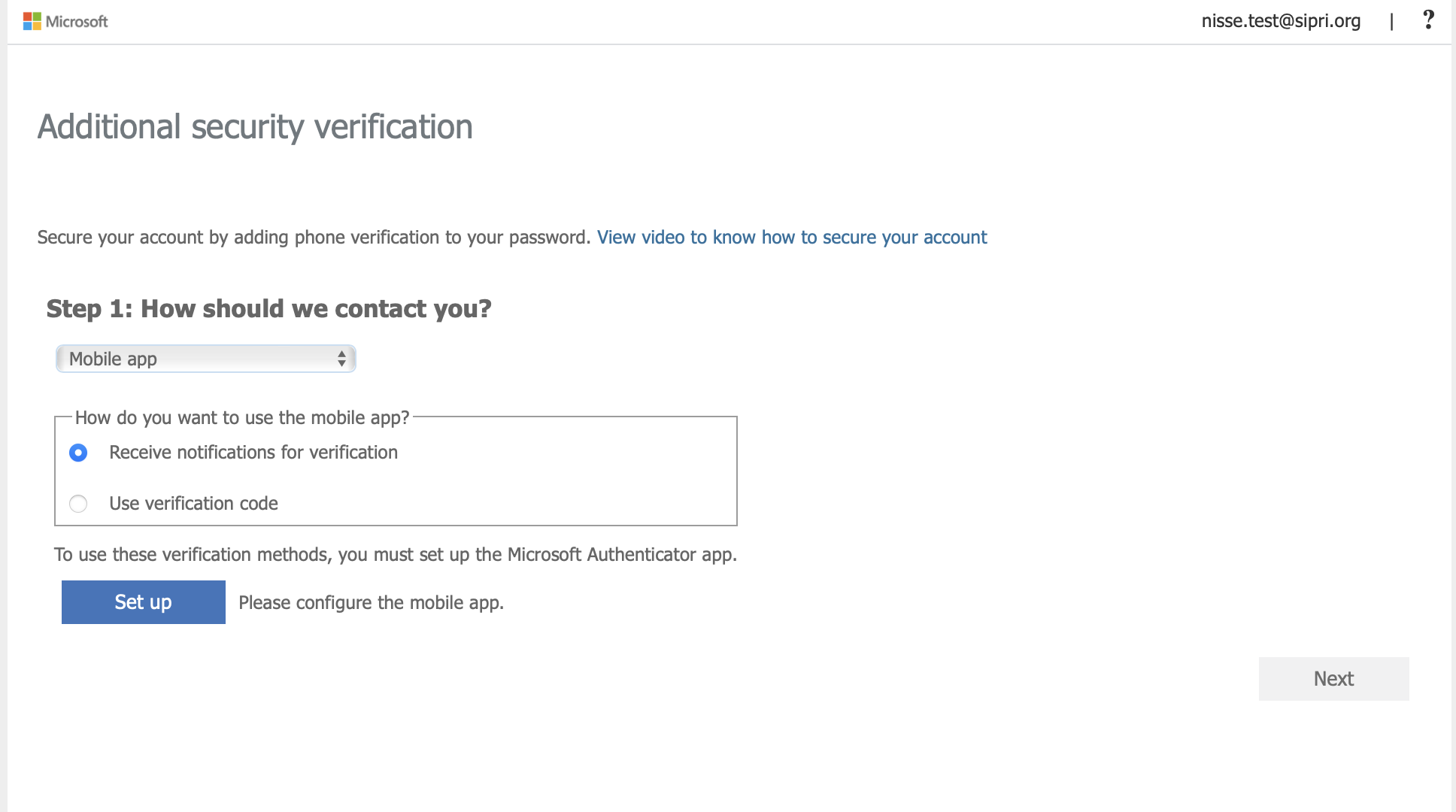
- Click Set up – a popup window with a QR-code and instructions will then appear. Follow the instruction – Go to your phone.
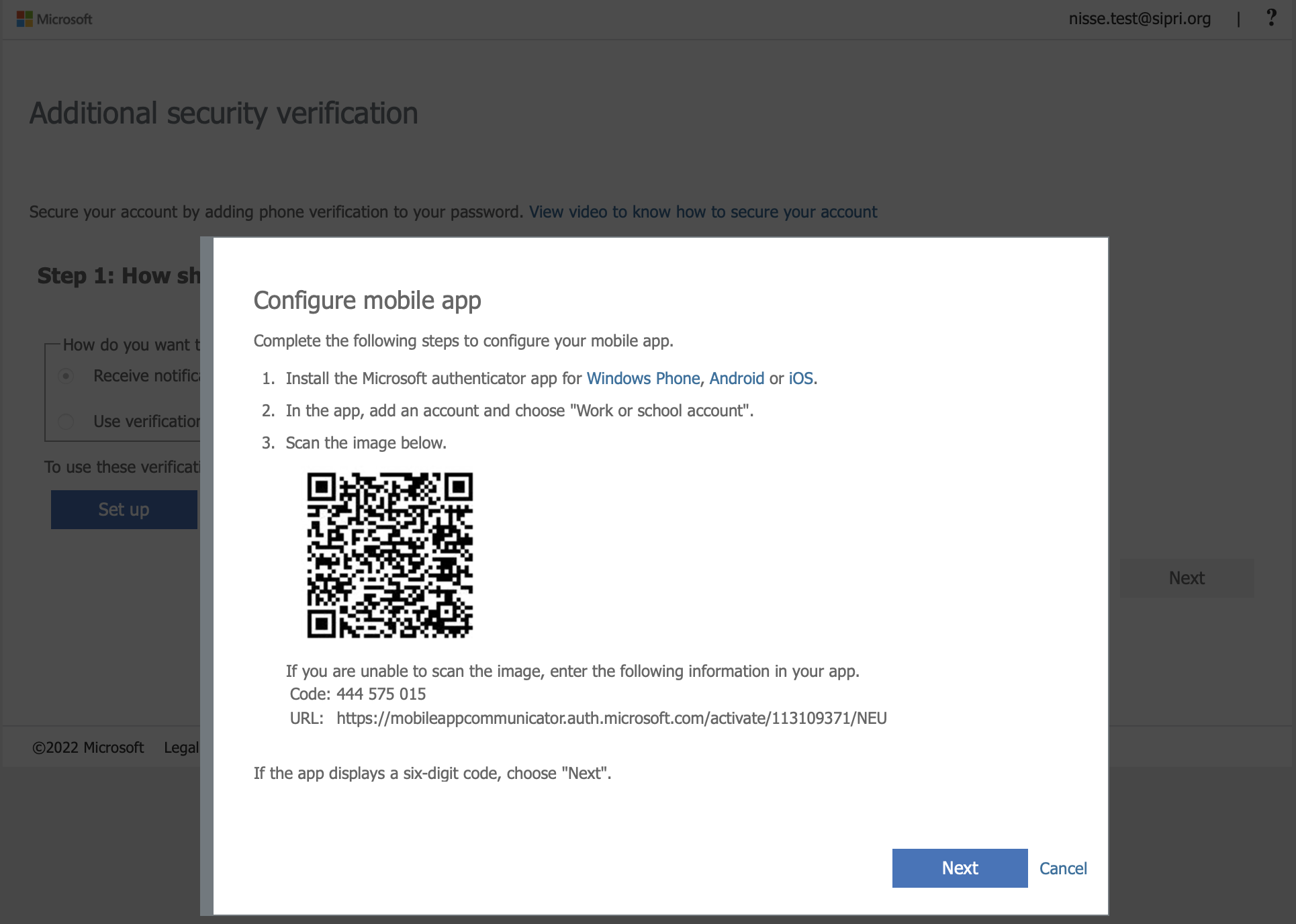
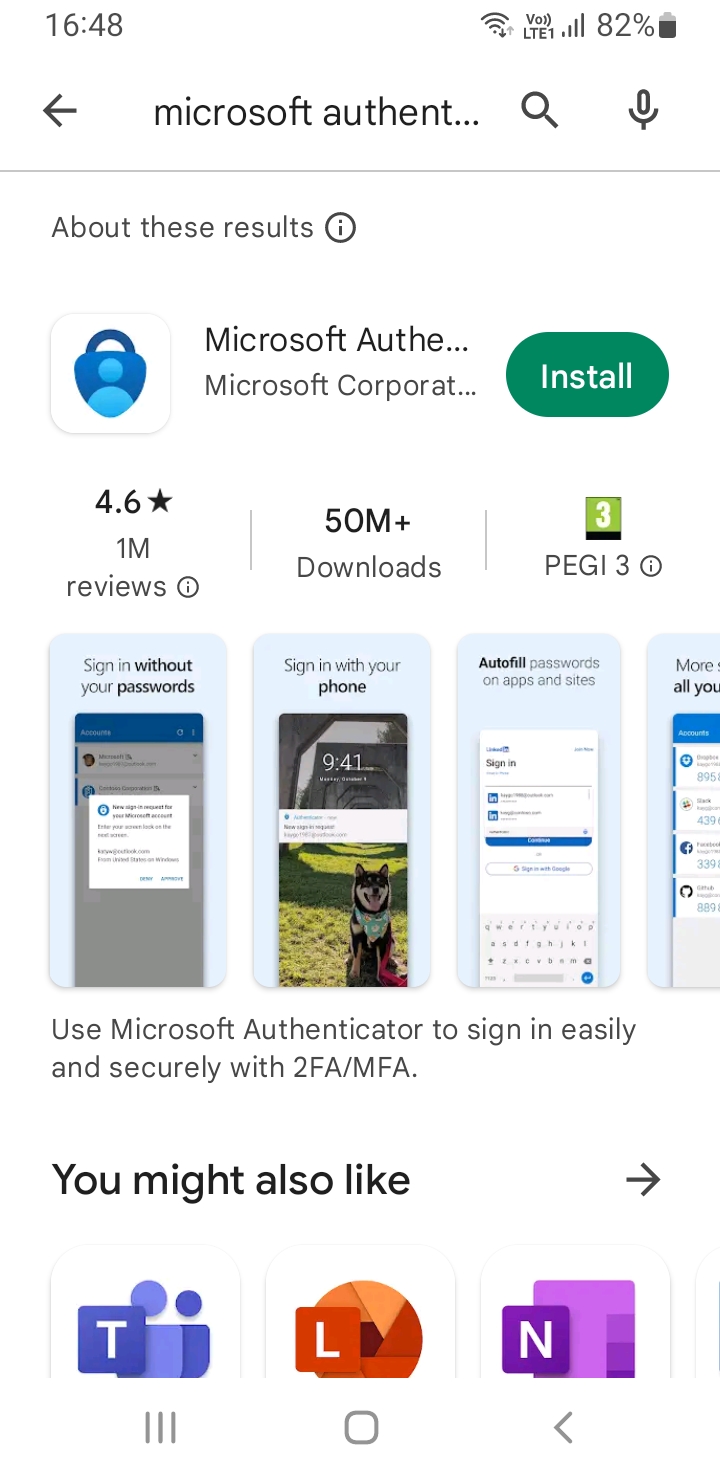
- On the phone: Open App Store/Play store, locate and download “Microsoft authenticator”.
- Open the app and choose “Add account”.
- Choose “Work or School account”.
- Choose “Scan a QR-code” and scan the code on the webpage popup.
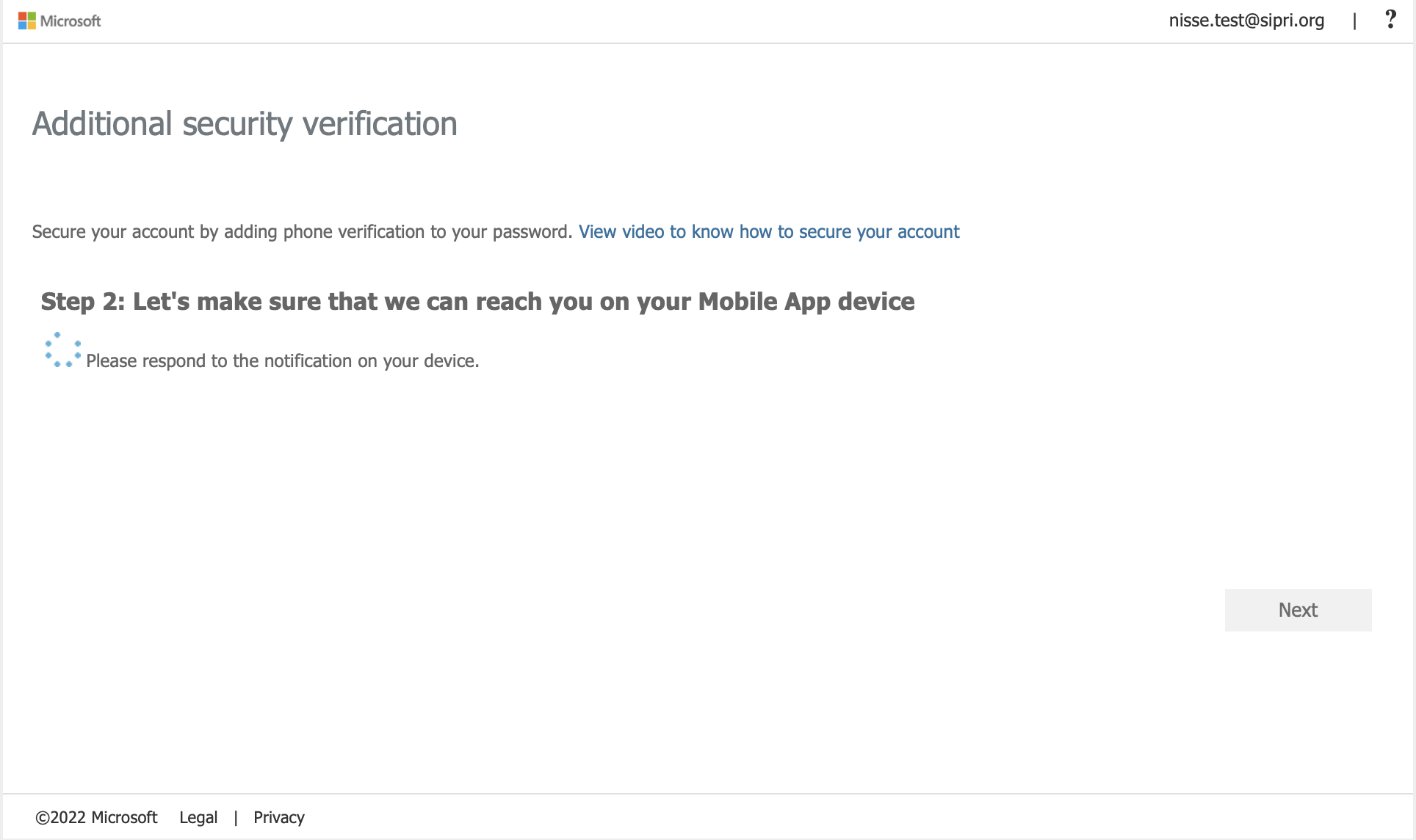
- Go back to your web page, click Next on the previous popup, and then next again on the below popup.
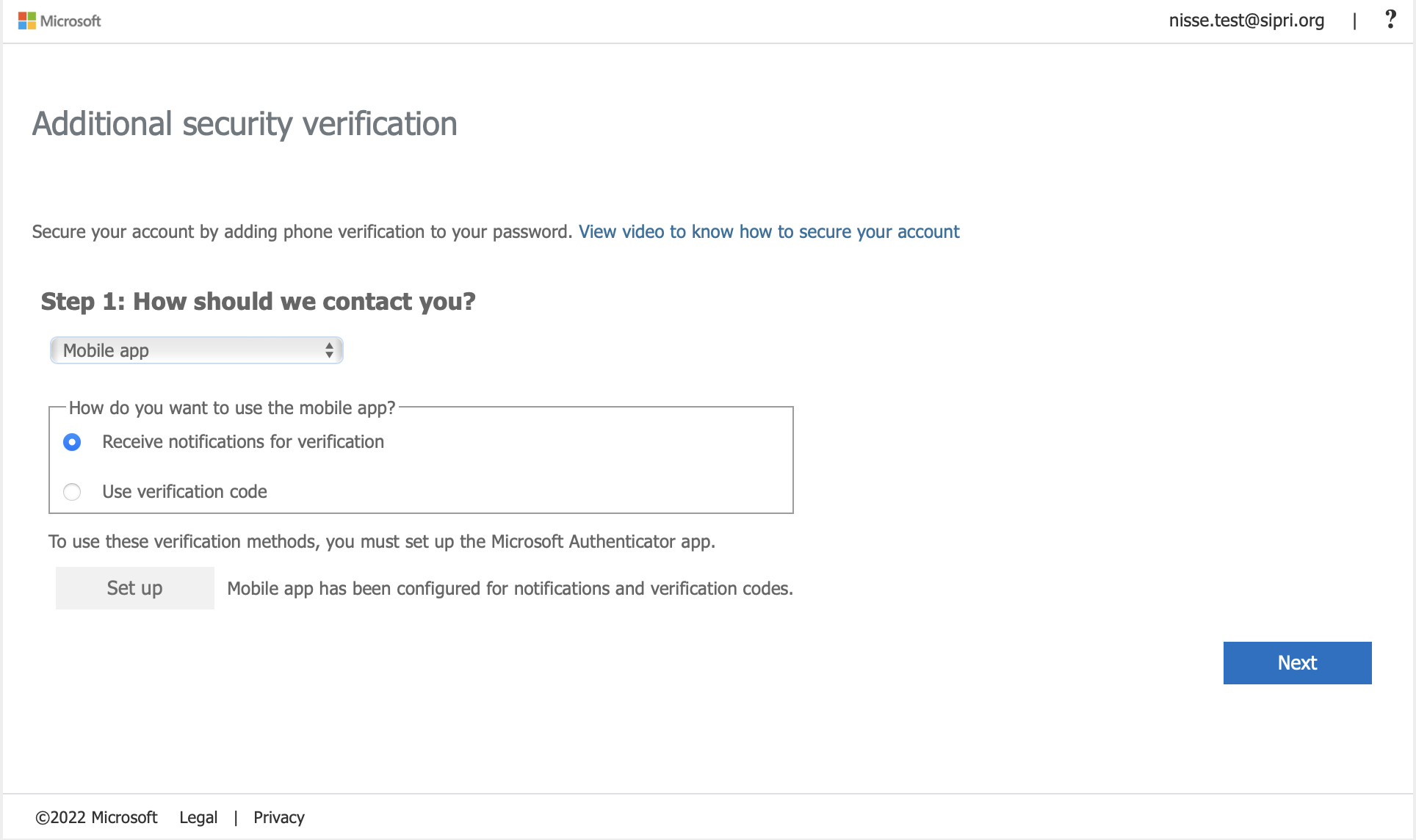
- Go to your phone and enter the requested information.
- And now you are done!